Git for Beginners
As we learned Why Version Control Systems is important in the software world in the last article: “Why Version Control Exists?”, now we’ll learn how to use one by diving into the most popular VCS, Git.
What is Git
Git is a distributed Version Control System.
It means:
Every developer has a complete copy of the project
The full history exists on your own machine
You don’t depend on a single central computer to work
So even if:
Internet is gone
Server is down
You can still work on the project.
Why Git is Used
Imagine you’re building a project and you:
Add a new feature
Suddenly the app breaks
You have no idea what caused it
Now what?
Without Git:
You panic
You manually undo changes
Or worse… you rewrite code
With Git:
You just go back to the last working version
Or check exactly which change caused the issue
Git helps you with:
Tracking changes
Working on features safely
Collaborating with other developers
Experimenting without fear
Maintaining clean project history
Git Basics and Core Terminologies
Before using Git commands, let’s understand a few basic terms.
Repository (Repo)
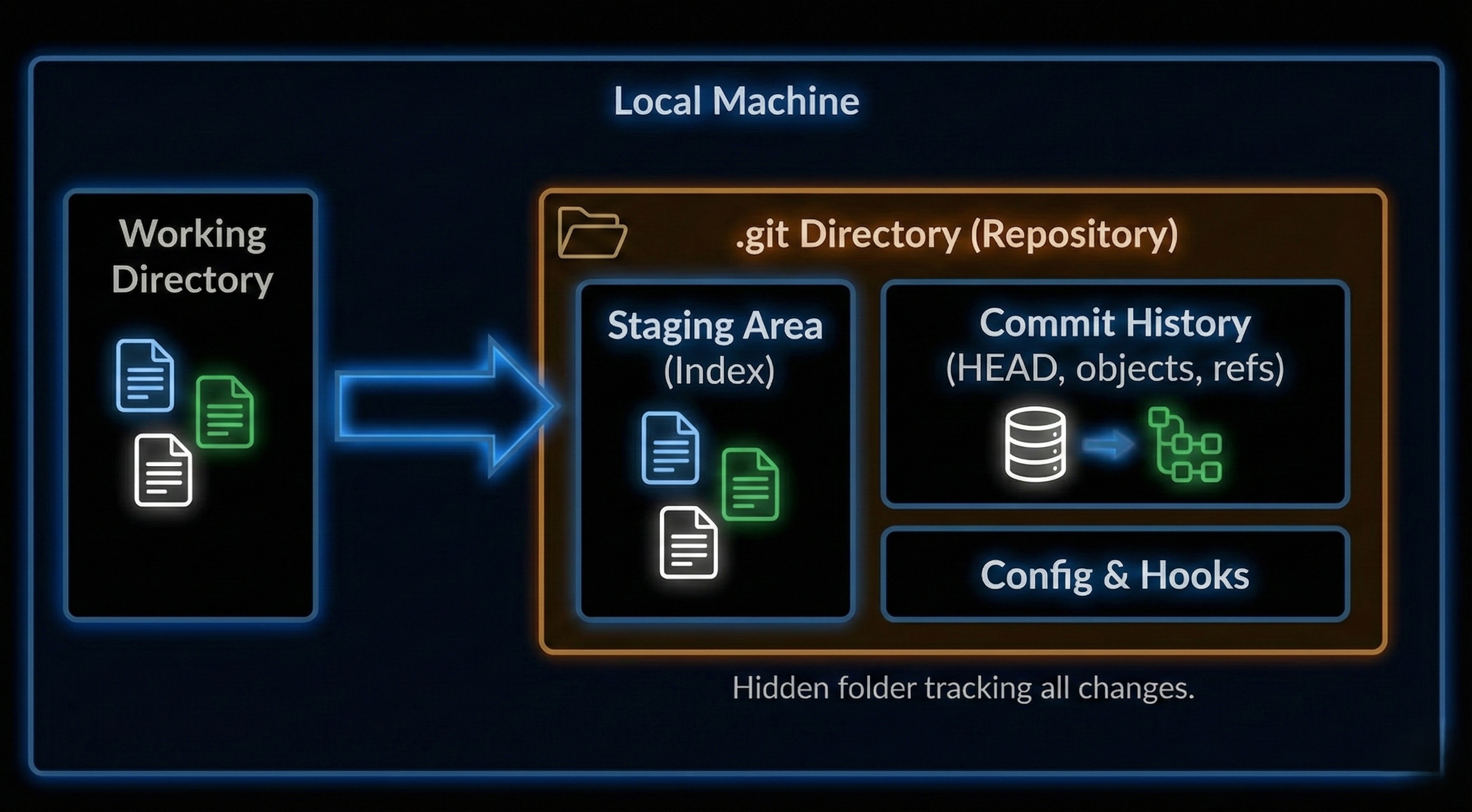
A repository is just:
A folder
With Git tracking enabled
It contains:
Your project files
Git’s hidden history
Once a folder becomes a repo, Git starts watching it
Commit
A commit is like a checkpoint in a game
It represents:
A snapshot of your code at a certain time
A meaningful change
Example:
“Added login feature”
“Fixed navbar bug”
Each commit has:
A unique ID
A message
A timestamp
Branch
A branch is an independent line of development.
Think of it like:
- Trying something new without touching the main code
You can:
Create a branch
Experiment freely
Merge it later if everything works
The default branch is usually called main.
HEAD
HEAD is simply:
- A pointer to your current commit
In simple words:
Where you are right now in the project history
Git’s Simple Mental Model
Before commands, understand this flow
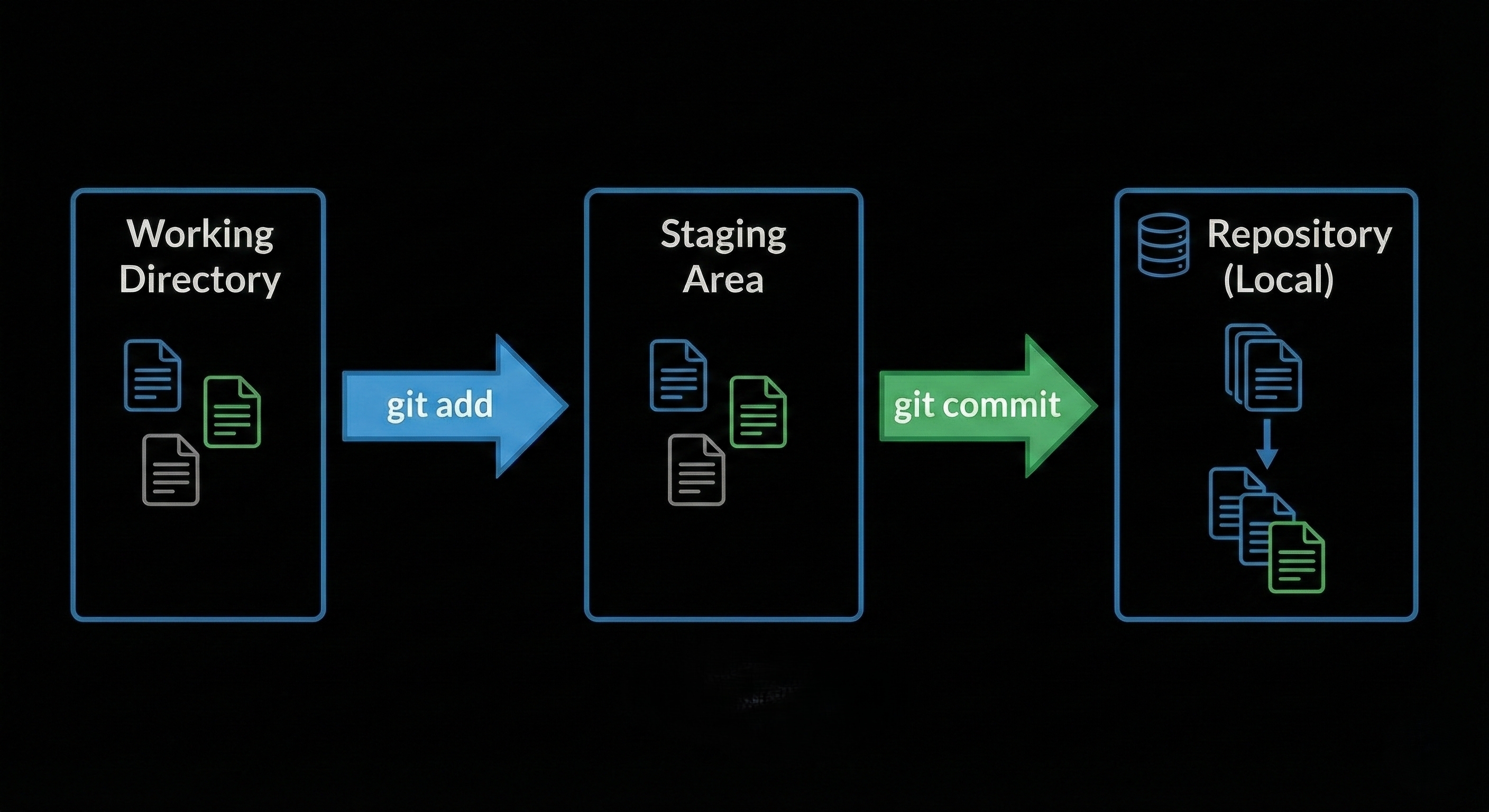
Working Directory: Where you write code
Staging Area: Where you prepare changes
Repository: Where commits are stored
Git doesn’t commit everything automatically.
You choose what to commit.
Local repository structure overview
Common Git Commands (With Examples)
Now let’s get practical.
1. git init
Turns a normal folder into a Git repository.
git init
After this:
Git starts tracking the folder
A hidden
.gitfolder is created
2. git status
Shows what’s happening right now.
git status
It tells you:
Which files are untracked
Which files are modified
Which files are staged
3. git add
Moves files to the staging area.
Add a specific file:
git add index.js
Add everything:
git add .
Think of this as:
“Git, I want to save these changes”
4. git commit
Creates a snapshot of staged changes.
git commit -m "Added basic homepage layout"
Always write:
Clear
Meaningful messages
Your future self will thank you.
5. git log
Shows the commit history.
git log
You’ll see:
Commit IDs
Author
Date
Commit messages
A Basic Git Workflow (From Scratch)
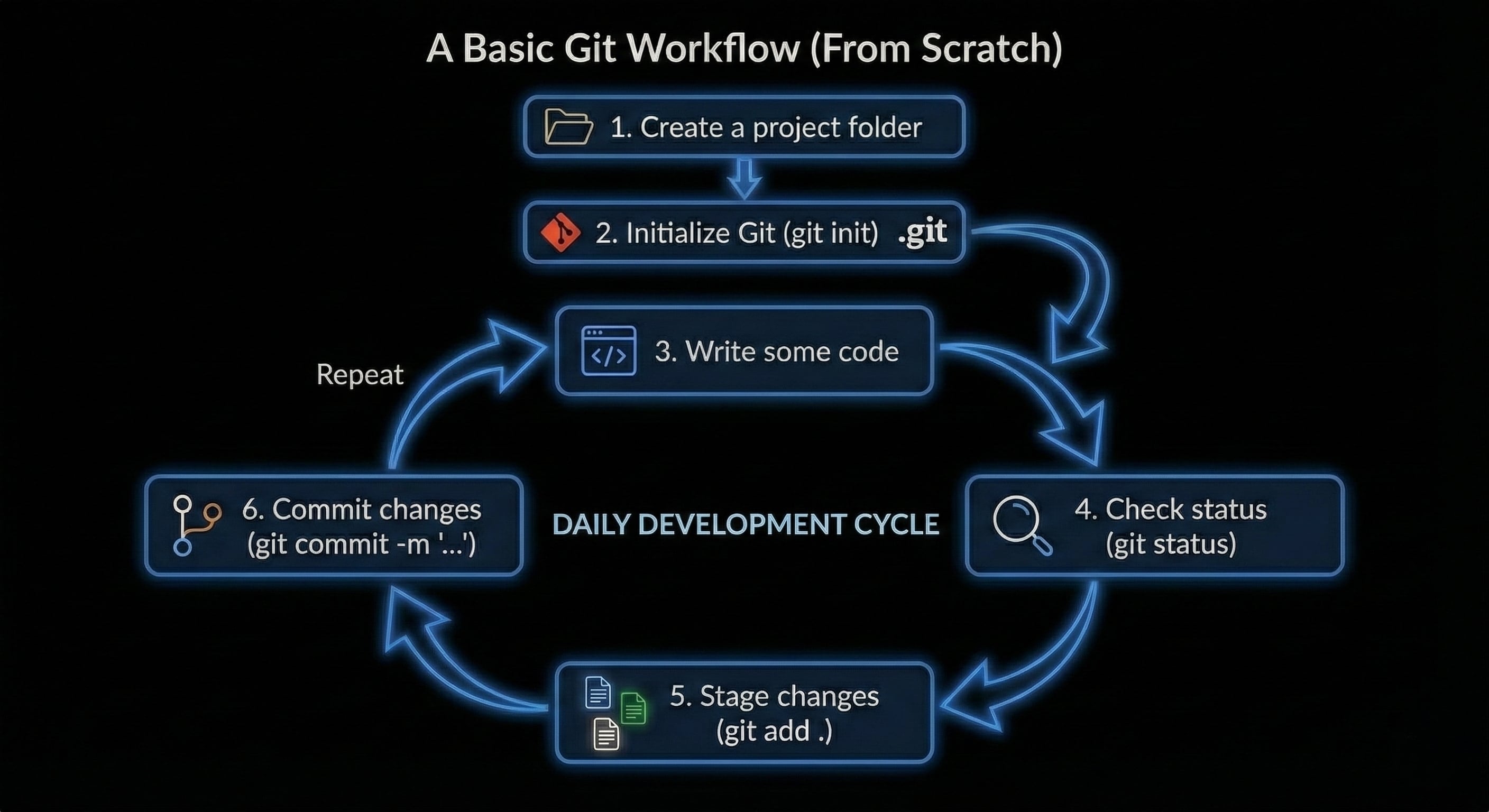
This simple loop is 90% of Git usage for beginners.


