Understanding HTML Tags and Elements
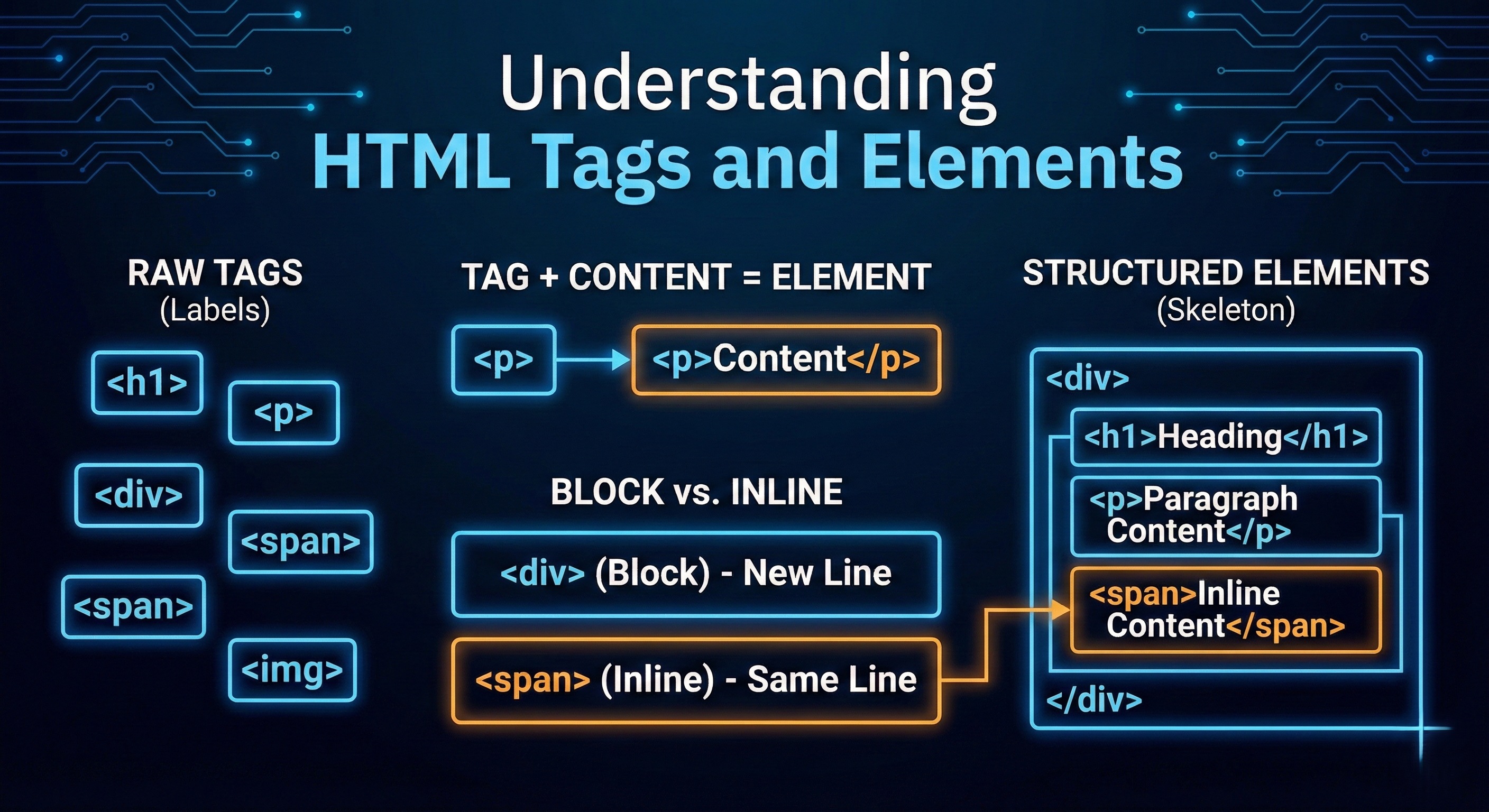
Before we talk about tags and elements, let’s zoom out a bit.
What is HTML? And Why Do We Use It?
HTML stands for HyperText Markup Language.
But don’t worry about the name.
In simple terms:
HTML is the skeleton of a webpage.
Just like:
Bones give structure to your body
HTML gives structure to a webpage
HTML tells the browser:
What is a heading
What is a paragraph
What is a button
What is an image
Without HTML:
There is no structure
Nothing meaningful to display
HTML as a Skeleton
Think of a webpage as a human body:
HTML → Skeleton (structure)
CSS → Clothes & appearance
JavaScript → Behavior & actions
Today, we’re focusing only on the skeleton part.
What is an HTML Tag?
An HTML tag is a keyword wrapped in angle brackets.
Example:
<p>
This tells the browser:
“Hey browser, this is a paragraph.”
Tags are like labels that describe content.
Opening Tag, Closing Tag, and Content
Most HTML tags come in pairs.
Example:
<p>Hello World</p>
Let’s break it down:
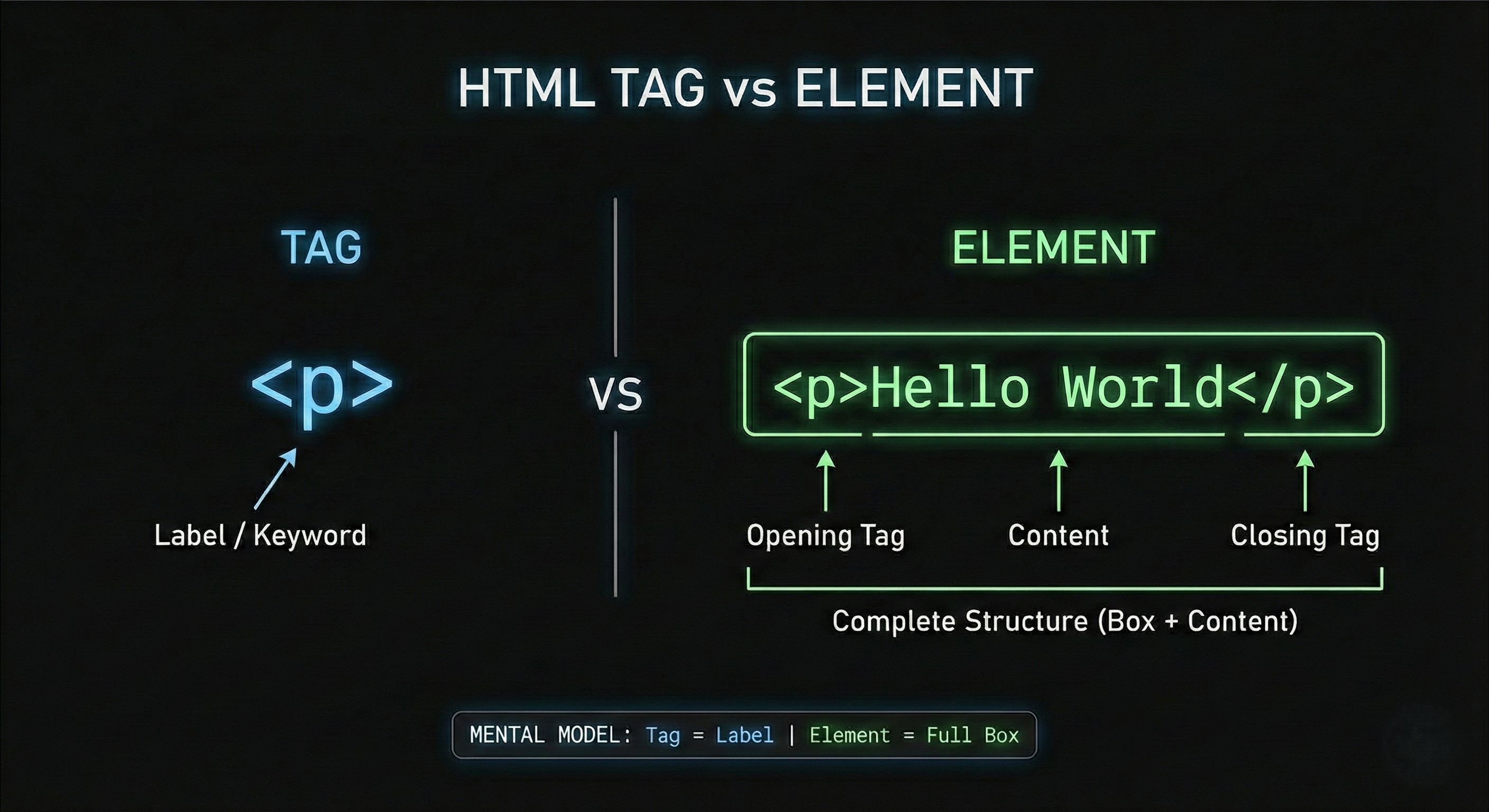
<p>→ Opening tagHello World→ Content</p>→ Closing tag
Together, they say:
“Hello World is a paragraph.”
What is an HTML Element?
HTML Tag
Just the label:
<p>
HTML Element
The complete thing:
<p>Hello World</p>
So:
Element = opening tag + content + closing tag
Think of it like a box:
The tag is the box label
The content is what’s inside
The element is the full box
Simple Examples You’ll Use Daily
Paragraph
<p>This is a paragraph</p>
Heading
<h1>This is a heading</h1>
Generic container
<div>Some content</div>
Inline text container
<span>Inline text</span>
You don’t need to memorize everything.
You’ll naturally learn by using them.
Self-Closing (Void) Elements
Some elements don’t wrap content.
They don’t need a closing tag.
Examples:
<img src="image.jpg">
<br>
<input>
These are called:
Self-closing elements
Void elements
Why?
Because they don’t contain text or children.
Think:
An image doesn’t wrap text
A line break doesn’t hold content
Block-Level vs Inline Elements
This is a very important concept.
Block-Level Elements
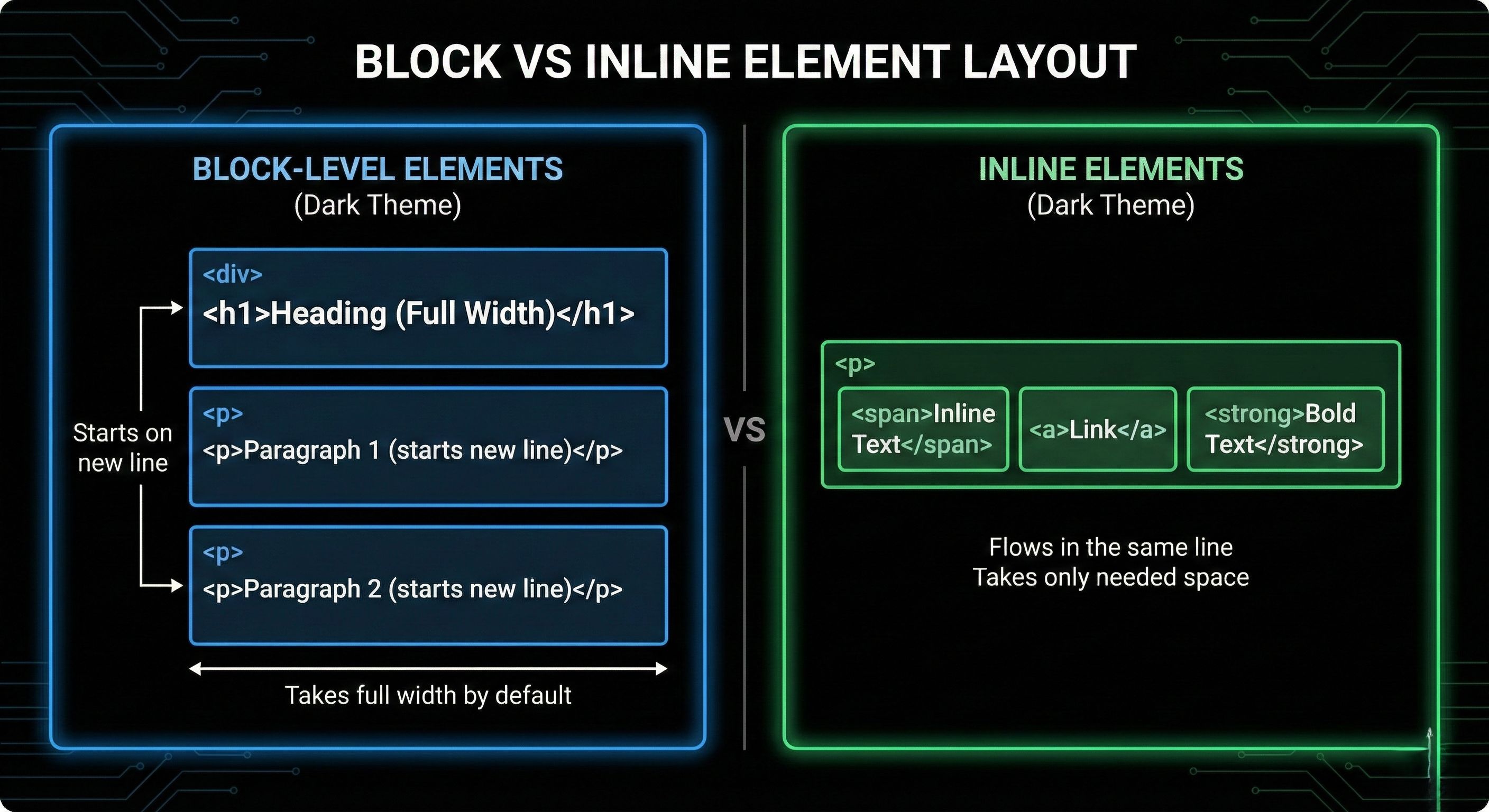
Block elements:
Start on a new line
Take full width by default
Examples:
<div><p><h1>
<p>Paragraph 1</p>
<p>Paragraph 2</p>
Each paragraph appears on a new line.
Think of blocks as big boxes.
Inline Elements
Inline elements:
Stay in the same line
Take only as much space as needed
Examples:
<span><a><strong>
<p>This is <span>inline</span> text</p>
Think of inline elements as words inside a sentence.
Commonly Used HTML Tags (Beginner-Friendly)
Here are some tags you’ll see everywhere:
<h1>to<h6>→ Headings<p>→ Paragraph<div>→ Container<span>→ Inline container<a>→ Link<img>→ Image<ul>,<ol>,<li>→ Lists<input>→ Input field<button>→ Button
That’s more than enough to get started.
Inspecting HTML in the Browser
One of the best ways to learn HTML is not by memorizing.
It’s by:
Opening a website
Right-click → Inspect
Looking at the HTML structure
You’ll start noticing:
How elements are nested
How tags are used in real projects
How browsers actually see the page
This builds intuition fast.
HTML Nesting
Elements can contain other elements:
<div>
  <h1>Title</h1>
  <p>Description</p>
</div>
This nesting is what creates page structure.
HTML is basically a tree of elements.
Final Mental Model
HTML → Skeleton
Tag → Label
Element → Complete structure
Block elements → Big sections
Inline elements → Small text-level parts


