Inside Git: How It Works and the Role of the .git Folder

Hey there developers!
By now, you probably know how to use Git commands.
You’ve typed things like:
git initgit addgit commit
And everything works.
But have you ever stopped and wondered:
What is Git actually doing behind the scenes?
Where does Git store all this history?
What is that mysterious.gitfolder?
How does Git remember everything so perfectly?
Let’s open the hood today
No commands to memorize just understanding.
How Git Works Internally (Big Picture)
At its core, Git does one simple thing really well:
- It stores snapshots of your project over time.
Not differences.
Not patches.
Complete snapshots.
Every time you commit:
Git takes a picture of your project
Stores it safely
Links it with the previous snapshot
All of this magic lives inside one folder.
Understanding the .git Folder
When you run:
git init
Git creates a hidden folder called:
.git/
This folder is the heart of Git
Your project files are outside.
Git’s brain is inside .git.
Why does the .git folder exist?
Because Git needs a place to store:
Commit history
File snapshots
Branch information
Metadata
Configuration
If you delete .git:
Your project becomes a normal folder again
All Git history is gone
What’s Inside the .git Folder? (Simplified)
You don’t need to memorize this, just understand it conceptually.
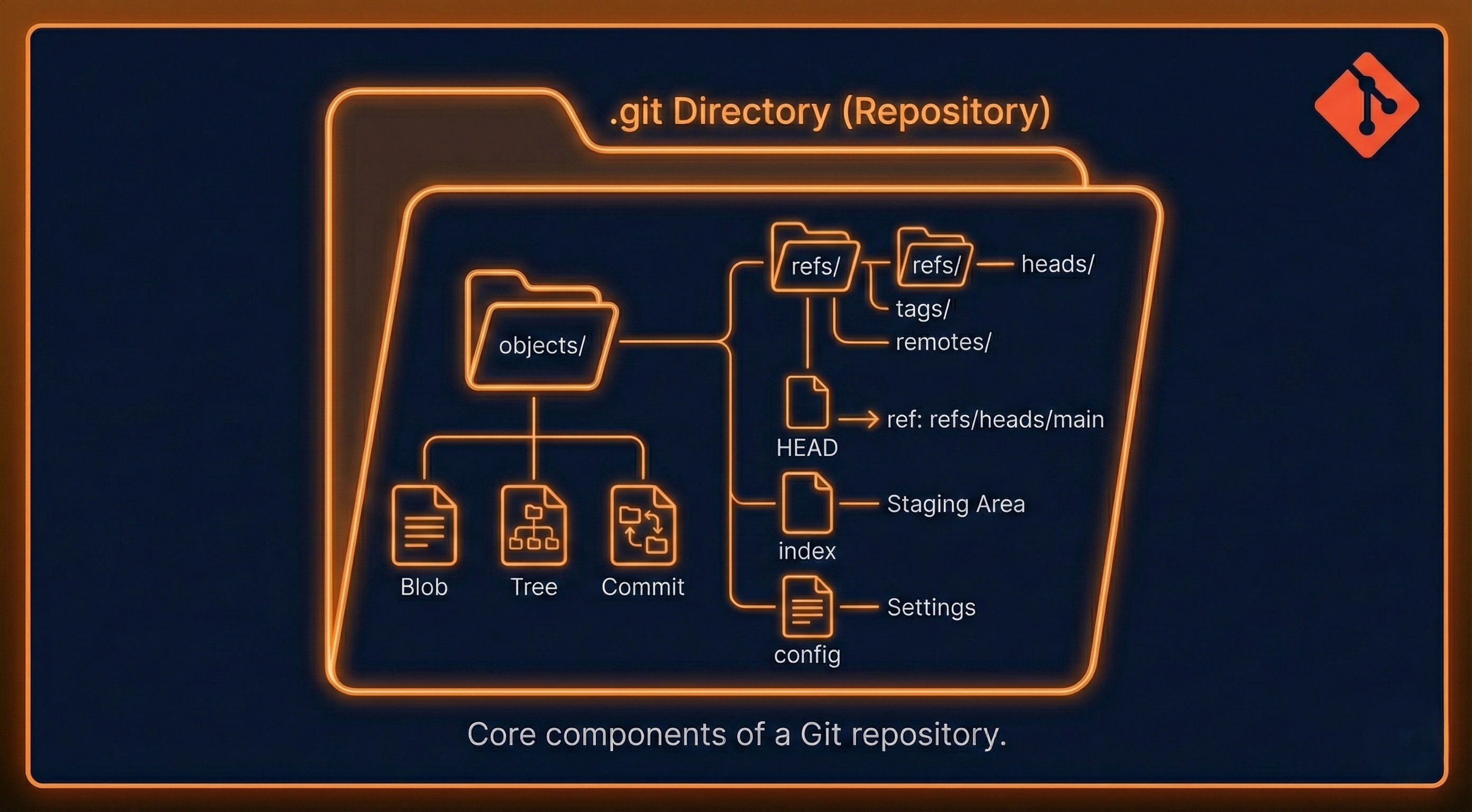
Let’s break only what matters.
Git Objects: Blob, Tree, Commit
Git stores everything as objects.
There are only three main object types you need to know.
1. Blob (File Content)
A blob stores:
The content of a file
Not the filename
Not the folder structure
If two files have the same content:
- Git stores only one blob
That’s how Git saves space efficiently.
2. Tree (Folder Structure)
A tree represents:
A directory
File names
Folder hierarchy
It links:
Filenames → blobs
Subfolders → other trees
Think of it as a map
3. Commit (Snapshot + Metadata)
A commit object stores:
A reference to a tree
Parent commit(s)
Author info
Commit message
Timestamp
A commit does not store files directly.
It points to a tree, which points to blobs.
Relationship Between Them
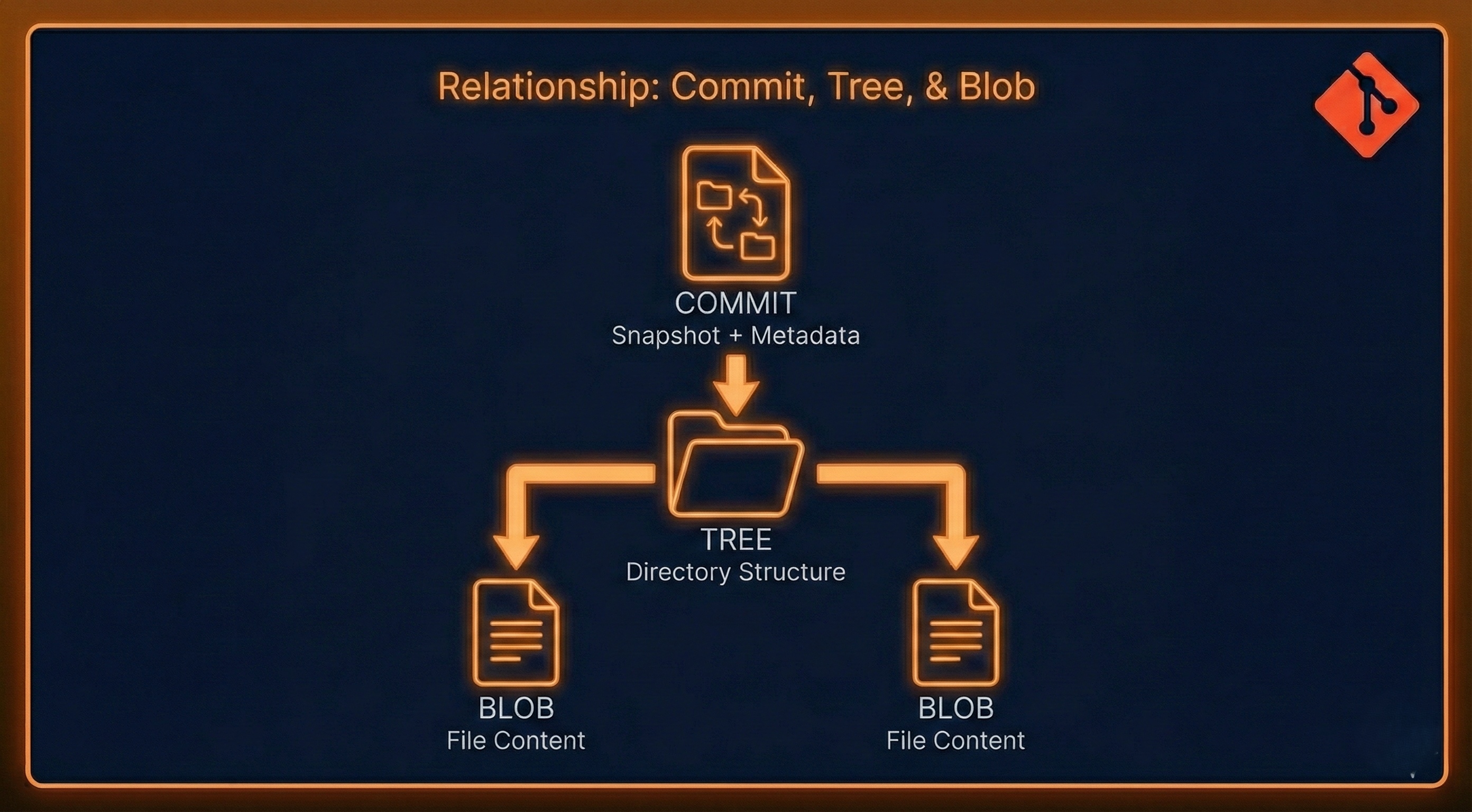
This chain is how Git reconstructs your project at any point in time.
How Git Tracks Changes (The Smart Way)
Here’s something important:
Git does not track files
Git tracks content
If a file changes:
Git creates a new blob
Old blobs remain untouched
Nothing is overwritten.
Everything is preserved.
That’s why Git is so reliable.
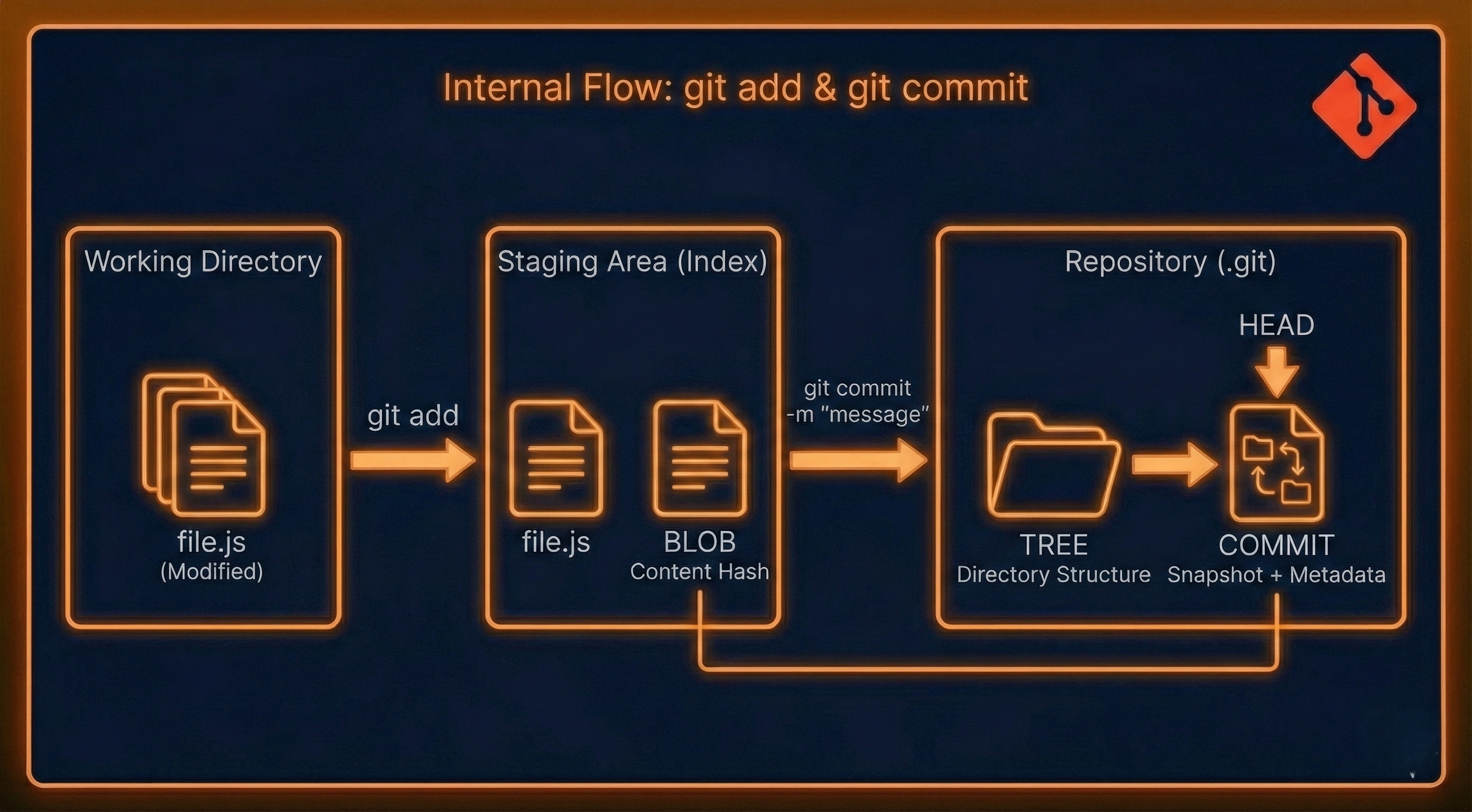
What Happens During git add?
Let’s say you modify a file.
Before git add
File is only in your working directory
Git knows it changed, but doesn’t store it yet
When you run:
git add file.js
Internally Git:
Takes the file content
Converts it into a blob
Stores it inside
.git/objectsUpdates the index (staging area)
git add = prepare snapshot
What Happens During git commit?
When you run:
git commit -m "message"
Git:
Takes everything from staging
Creates a tree object
Creates a commit object
Links it to the previous commit
Moves
HEADto the new commit
git commit = save snapshot permanently
Internal flow of git add and git commit
How Git Uses Hashes (Why Git Is So Safe)
Every Git object is stored using a hash.
Specifically:
- SHA-1 hash (40-character string)
Example:
a3f5c9e7b2c4...
This hash depends on:
The content
The structure
The metadata
Why hashes matter
Because:
If content changes → hash changes
Tampering is detectable
History cannot be silently modified
This gives Git:
Integrity
Trust
Reliability
That’s why Git is used in huge companies and open-source projects.
Building the Right Mental Model of Git
Don’t think of Git as:
A bunch of commands
Think of Git as:
A content-addressed database
A snapshot machine
A history tracker
Commands like add and commit are just ways to talk to this system.
Once you understand this:
Git stops feeling scary
Git starts feeling logical


